The Complete Guide: How to Use MetaTrader 4 (MT4) on MH Markets
Abstract:Welcome to the complete guide for learning the MH Markets MetaTrader 4 platform. If you want to go from setup to trading with confidence, you are in the right place. This guide is made for both new and experienced traders, giving you a complete, step-by-step process for using one of the world's most popular trading platforms with a top broker. We will cover everything from downloading the software to making your first trade and using advanced features. By the end of this article, you will know how to use the MH Markets MT4 platform easily, manage your trades well, and unlock all the platform's features. This guide will help you trade with more clarity and control.
Welcome to the complete guide for learning the MH Markets MetaTrader 4 platform. If you want to go from setup to trading with confidence, you are in the right place. This guide is made for both new and experienced traders, giving you a complete, step-by-step process for using one of the world's most popular trading platforms with a top broker. We will cover everything from downloading the software to making your first trade and using advanced features. By the end of this article, you will know how to use the MH Markets MT4 platform easily, manage your trades well, and unlock all the platform's features. This guide will help you trade with more clarity and control.
Why Choose MH Markets MT4?
The combination of the MetaTrader 4 platform and MH Markets' broker services creates a powerful trading environment. MT4 is known worldwide for being stable, having strong features, and being easy to use. When combined with MH Markets, traders get access to an improved system designed for top performance. This combination is not by accident; it's a careful joining of world-class technology with client-focused broker services.
The specific benefits of using the MH Markets MT4 platform include:
· Reliability and Speed: MH Markets uses advanced server technology, ensuring high uptime and fast trade execution. This is important for reducing slippage and catching opportunities in fast-moving markets.
· Access to Many Instruments: Through the MH Markets MT4 platform, you can trade a wide range of financial instruments. This includes major and minor Forex pairs, global indices, precious metals like gold and silver, and key commodities.
· Advanced Charting and Analysis: MT4 is famous for its powerful built-in charting tools. You get access to multiple timeframes, a collection of technical indicators, and graphical objects to perform detailed technical analysis directly on your charts.
· Automated Trading Features: The platform fully supports the use of Expert Advisors (EAs). This allows you to automate your trading strategies, enabling hands-free execution and backtesting against historical data to improve your approach.
Ready to experience these benefits yourself? Explore the full capabilities and open your MH Markets MT4 account today.
Getting Started: Your Setup
Setting up your trading station is the first important step. We have converted this process into three simple stages to get you from registration to a live trading environment quickly and easily. Follow these instructions carefully to make sure your platform is set up correctly from the start.
Step 1: Open Your Account
Before you can use the platform, you need a trading account with MH Markets.
1. Go to the official MH Markets website and find the 'Register' or 'Open Account' button. You will have the choice between a Live Account (for real money) and a Demo Account (for risk-free practice). For beginners, starting with a demo account is highly recommended.
2. During the registration process, you will be asked to select your account type. Make sure you choose an account specifically made for the MetaTrader 4 platform. MH Markets offers various account types, so pick the one that matches your trading style and capital.
3. Complete the registration by providing the required identification documents for account verification (Know Your Customer or KYC process). This is a standard regulatory requirement.
4. Once your account is approved, fund it using one of the available deposit methods. Your login details, including your Account ID and password, will be sent to your registered email address.
Step 2: Download and Install
With your account details ready, the next step is to get the MT4 terminal.
1. Log in to your MH Markets client area. You will find a dedicated downloads section. Here, you can find the correct installation file for your operating system (Windows or macOS).
2. It is important to download the MT4 terminal directly from MH Markets. This version is pre-configured with MH Markets' server details, which greatly simplifies the login process.
3. Run the downloaded file. The installation wizard will launch. Follow the on-screen prompts, accepting the terms and conditions. The installation is straightforward and typically completes in a few minutes.
Step 3: Connect and Log In
This is where you connect your trading account to the platform. It's a common point of confusion for new users, but it's simple when you know what to look for.
1. After installation, launch the MetaTrader 4 terminal. A login window will automatically appear. If it doesn't, go to 'File' in the top-left corner and click 'Login to Trade Account'.
2. You will need three pieces of information from the email you received from MH Markets: your Login ID (your account number), your Password, and the Server Name.
3. Enter your Login ID and Password.
4. The most important part is selecting the correct server. Click the dropdown menu for 'Server'. You will see a list of server names. You must choose the exact server name provided in your email. It will be something like 'MHMarkets-Live' or 'MHMarkets-Demo'. Choosing the wrong server is the most common reason for login failure.
5. Once you click on 'Login', check the connection status in the bottom-right corner of the platform. If it shows data speed (e.g., “54/2 kb”) and you hear a “connection successful” sound, you are connected and ready to trade. If it says “No connection” or “Invalid account,” double-check your details and server selection.
Learning the MT4 Interface
At first glance, the MT4 interface can seem complex. However, it is logically divided into four main windows. Understanding the function of each section will quickly make you feel comfortable.
The Market Watch Window
Located on the top-left by default, the Market Watch window is your gateway to the markets. It displays a list of tradable instruments (symbols) along with their live Bid and Ask prices. You can right-click within this window to 'Show All' symbols, add or hide specific instruments, or open the 'Symbols' window for a more detailed view. You can also right-click and select 'Spread' to display the current spread for each pair, which is the difference between the Bid and Ask price.
The Navigator Window
Positioned below the Market Watch, the Navigator window is your control center. It organizes your accounts, indicators, Expert Advisors (EAs), and scripts. This is where you can quickly switch between different trading accounts (if you have more than one), or drag-and-drop technical indicators and EAs directly onto your charts. It's a shortcut hub that saves you from going through menus.
The Chart Window
This is the largest and most important part of the interface. The Chart Window is where you conduct your technical analysis. You can open multiple charts for different instruments and timeframes at the same time. Right-clicking on a chart gives you access to its properties, where you can customize colors, apply templates, and add indicators. The toolbar at the top of the screen allows you to quickly change chart types (bar, candlestick, or line) and zoom in or out.
The Terminal Window
At the bottom of the screen is the Terminal. This multi-functional window has several important tabs. The 'Trade' tab is where you will spend most of your time, as it displays your open positions, pending orders, and account balance. The 'Account History' tab provides a complete record of all your closed trades. Other tabs like 'Alerts', 'Mailbox', and 'Journal' provide system messages and a log of all platform activity, which is useful for troubleshooting.
Making Your First Trade
Placing a trade is the primary function of the platform. MT4 offers two primary execution methods: Market Execution and Pending Order. A Market Order is executed immediately at the current market price, while a Pending Order is set to execute only when the price reaches a specific level you define.
| Order Type | Description |
| Buy by Market | An order to buy an instrument at the current Ask price. |
| Sell by Market | An order to sell an instrument at the current Bid price. |
| Buy Limit | An order to buy at or below a specified price. |
| Sell Limit | An order to sell at or above a specified price. |
| Buy Stop | An order to buy at a price above the current market price. |
| Sell Stop | An order to sell at a price below the current market price. |
Placing a Market Order
Here is the step-by-step process for executing a live market order.
1. Open the 'New Order' window. The quickest way is to double-click on an instrument in the Market Watch window. Alternatively, you can click on the 'New Order' button in the toolbar.
2. In the order window, confirm whether the 'Symbol' is correct. Next, set the 'Volume', which is your trade size in lots.
3. Before executing, set your risk management parameters. Enter a price level for your 'Stop Loss' (to limit potential losses) and 'Take Profit' (to secure profits). This is an essential step for disciplined trading. It protects your capital from adverse market moves.
4. Under 'Type', ensure 'Market Execution' is selected.
5. Click either 'Sell by Market' (if you predict the price will go down) or 'Buy by Market' (if you predict the price will go up).
6. Your trade is now live. You can confirm this by looking at the 'Trade' tab in the Terminal window. Your open position, including its running profit or loss, will be displayed there.
Beyond the Basics: Analysis
Once you are comfortable with the basics, you can begin to use MT4's powerful analytical tools to improve your trading strategy.
Customizing Charts & Templates
Your charting environment should work for you. MT4 allows for deep customization. You can add multiple technical indicators to a chart from the Navigator window. For example, you might combine a set of Moving Averages to identify trends, an RSI to gauge momentum, and MACD to spot divergence.
Once you have a chart setup with your preferred indicators, colors, and settings, you can save it as a 'Template'. Right-click on the chart, go to 'Template', and select 'Save Template'. You can then instantly apply this entire configuration to any other chart, saving you significant time and ensuring consistency in your analysis.
Introduction to Expert Advisors
Expert Advisors (EAs) are automated trading programs that run on MT4. They can monitor markets and execute trades on your behalf based on a pre-programmed strategy. This allows for 24/7 trading without your direct involvement.
To use an EA on the MH Markets MT4 platform, you first need to install it by placing the file in the 'Experts' folder of your MT4 data directory ('File' > 'Open Data Folder' > 'MQL4' > 'Experts'). After restarting MT4, the EA will appear in the Navigator window. You can then drag it onto a chart and configure its settings. Ensure the 'AutoTrading' button in the main toolbar is enabled.
Disclaimer: While EAs can be powerful, they also carry significant risk. Always backtest an EA extensively on historical data and test it on a demo account before deploying it with real funds. Past performance is not indicative of future results.
Optimize Trading: Spreads & Mobile
Two key factors that impact your trading experience are costs and accessibility. Understanding MH Markets' spreads and using mobile trading can give you a competitive edge.
Understanding MH Markets Spreads
The spread is the difference between the buy (Ask) and sell (Bid) price of an instrument. It is the primary cost of trading. A lower spread means a lower cost to enter and exit a trade. An MH Markets spread comparison shows that the broker offers competitive, tight spreads, which is especially beneficial for scalpers and high-frequency traders.
Here is a look at typical spreads you might find on the MH Markets MT4 platform.
| Instrument | Typical Spread (Pips) on MH Markets MT4 |
| EUR/USD | 1.2 |
| GBP/USD | 1.5 |
| USD/JPY | 1.3 |
| XAU/USD (Gold) | 2.5 |
Disclaimer: These are indicative average spreads and can change based on market volatility and liquidity.
Spreads are dynamic. For the most up-to-date information, we recommend checking the [live spreads directly on the MH Markets platform](https://www.mhmarkets.com/).
Learning Mobile Trading
In today's market, the ability to trade on the go is essential. MH Markets mobile trading is facilitated through the MT4 mobile app, giving you the full power of the desktop terminal in the palm of your hand.
To get started, download the 'MetaTrader 4' app from the Apple App Store or Google Play Store. When you open the app, go to 'Settings' > 'New Account' > 'Login to an existing account'. In the server search bar, type “MHMarkets” and select the same server name you use for your desktop platform. Log in with your account details.
Key features of MH Markets mobile trading include:
· Full Trade Management: Open, modify, and close trades from anywhere.
· Advanced Charting: Access charting tools and indicators on your mobile device.
· Real-Time Quotes: Monitor live prices for all available instruments.
· Account Monitoring: Keep track of your balance, equity, and trade history.
A pro-tip for mobile trading is to pre-set your default trade sizes in the app's settings. This helps prevent costly errors that can happen when inputting numbers on a smaller screen in a hurry.
To get started with mobile trading, download the app and connect your account. You can find all the necessary server details in your MH Markets client area.
Conclusion: Your Journey Begins
You have now walked through the entire process of setting up, navigating, and executing trades on the MH Markets metatrader 4 platform. We have covered opening an account, learning the interface, placing your first trade, and exploring advanced features such as chart templates and EAs. We have also highlighted the importance of competitive spreads and the flexibility of mobile trading. The MH Markets metatrader 4 platform is a strong and reliable combination, offering a professional-grade environment for traders of all levels. With the knowledge from this guide, you are now equipped to begin your trading journey with confidence. The platform is ready. Your education has begun. The next step is yours to take.
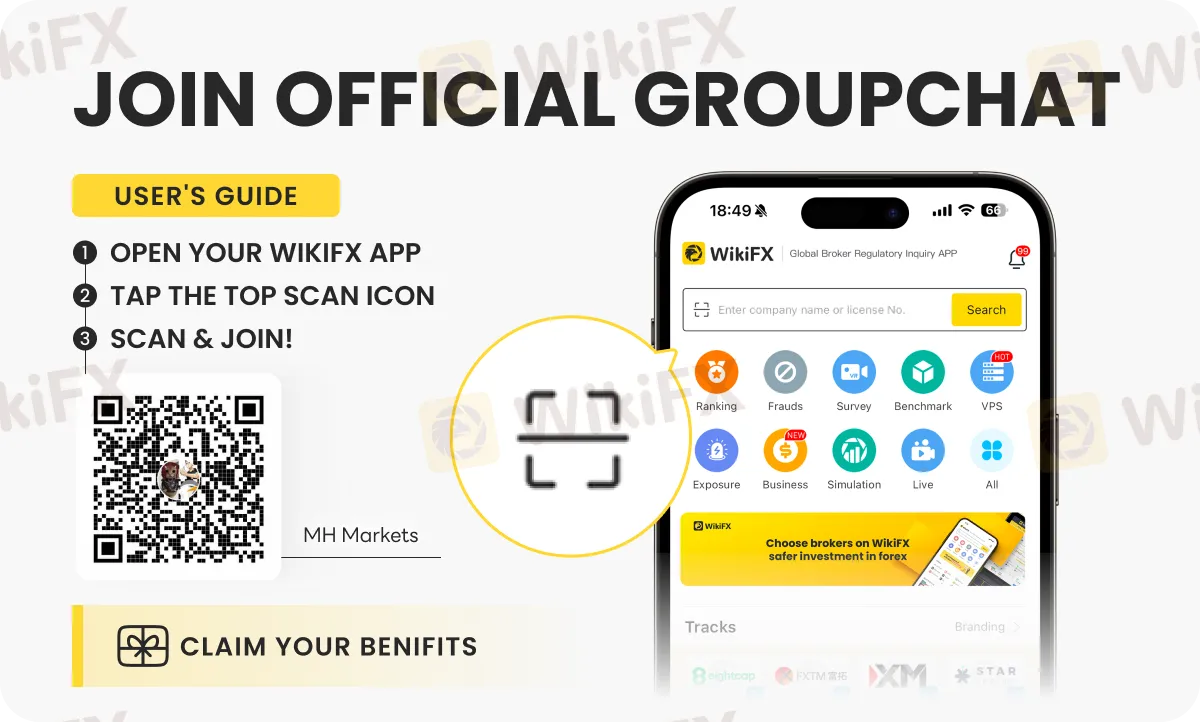
To know more about MH Markets, its products and services, join this specific chat group (OIFSYYXKC3) by following the process shown on the image below -

Read more

Become a Broker Reviewer: Your Experience is Worth Its Weight in Gold
Dear Forex Traders, When choosing a forex broker, have you ever faced these dilemmas? Dozens of broker advertisements, but unsure which one is truly reliable? Online reviews are either promotional content or outdated/incomplete? Want to learn about real users’ deposit/withdrawal experiences but can’t find firsthand accounts? Now, your experience can help thousands of traders and earn you generous rewards! The campaign is long-term and you can join anytime.

Fed Minutes in Focus as USD Stabilizes, Gold Slips from Record Highs
Markets turn cautious as investors await the Fed’s December meeting minutes. The US Dollar stabilizes near 98.10, gold drops sharply from record highs, while GBP/USD, EUR/USD, and USD/JPY react to central bank signals.

Star-Studded Jury Panel Unveiled as WikiFX Golden Insight Award’s Expert Judging Commences
Following the successful conclusion of the global public voting phase, the WikiFX Golden Insight Award has now officially entered its final evaluation stage—the expert judging. This marks a critical juncture in the 2025 Golden Insight Award selection process, ushering in the most authoritative and rigorous phase of professional assessment and industry consensus-building.

FP Markets Marks 20 Years of Global Trading
FP Markets celebrates 20 years of innovation, global expansion, and award-winning service, reinforcing its role as a trusted multi-asset broker.
WikiFX Broker
Latest News
Yen in Peril: Wall Street Eyes 160 as Structural Outflows Persist
 WikiFX
RM238,000 Lost to a Fake Stock Scheme | Don't Be The Next Victim!
WikiFXFX Markets: Dollar Holds Firm at 98.00; Euro and Kiwi Breach Key Technical Levels
WikiFX“Elites’ View in Arab Region” Event Successfully Concludes
WikiFXBond Markets Signal 'Hawkish' Risk: The Era of Cheap Money is Officially Over
WikiFXFP Markets Marks 20 Years of Global Trading
WikiFXGivTrade Secures UAE SCA Category 5 Licence
WikiFXIs 9X markets Legit or a Scam? 5 Key Questions Answered (2025)
WikiFXWhat Is a Liquid Broker and How Does It Work?
WikiFXWhat Is a Forex Expert Advisor and How Does It Work?
WikiFXRate Calc